


Great research is rarely built in isolation. Neither is a great knowledge graph.
This picks up from Make Your First Contribution On The Graph Canvas: you already have a private graph with one submission of your own merged into it. For the smoothest walkthrough, have your teammate create an Axy account before you invite them — that lets you see the immediate-access path for an existing account.
Review on Axy isn’t a courtesy between colleagues. It’s the only way a change gets into a graph, and it takes two people, because the product won’t let you review your own work.
Add your teammate, and choose their role
Collaboration starts when you invite a colleague and decide what they should be able to do.
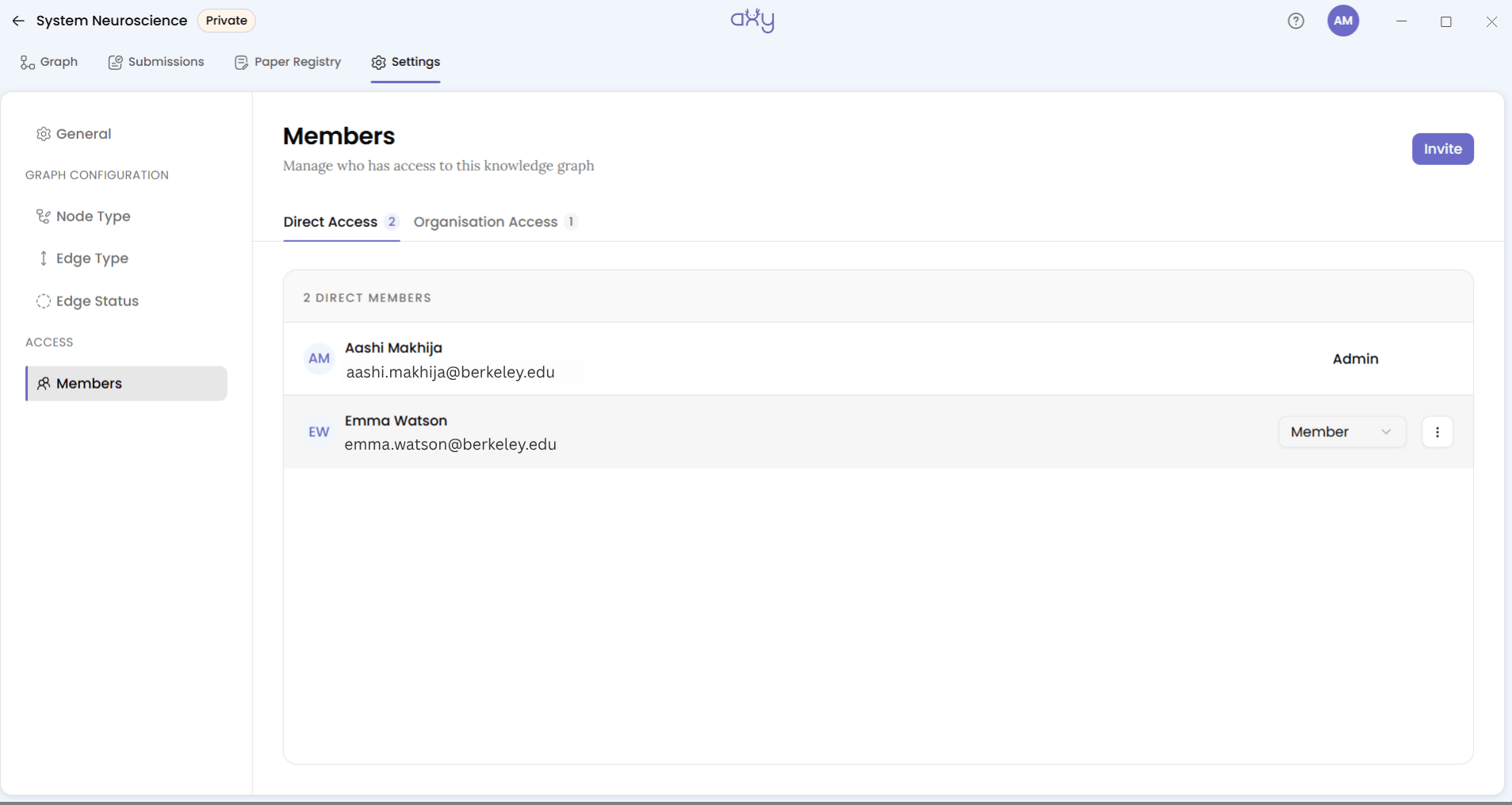
Open your graph and go to Settings → Members. On the Direct Access tab, type an email, press Enter to add another, then hit Invite. You’ll see a toast: “Invitation sent.”
What happens next depends on whether that email already has an Axy account. If they already have one, access is granted on the spot — no invite screen, no waiting. If they’re new to Axy, they’ll receive a WorkOS invitation and land on /invite/<token> with an Accept invitation button. Once they’ve joined, the graph appears under My Org-Graphs on their account.
Pick their role at the same time, since it shapes what they can do from day one. Axy has three:
- View only can see the graph and read reviews. They can’t submit or review anything.
- Member can build, submit, and review a contribution. This covers most research collaborations.
- Admin can do everything a Member can, plus merge submissions, manage other members, and open Settings.
Inviting someone as View only when you actually need them to review submissions is a common mismatch — worth getting right the first time.
Your teammate builds and submits
Once they’ve joined, the graph shows up under My Org-Graphs on their account. The process is familiar: they open the Graph tab, add nodes, connect them with edges, attach evidence, and submit.
If you haven’t already, revisit Make Your First Contribution On The Graph Canvas to see that process in detail.
The difference this time is that a submission now exists that isn’t yours — sitting at Open, and announced on their side with a “Submitted for review” toast.

Find the submission for review
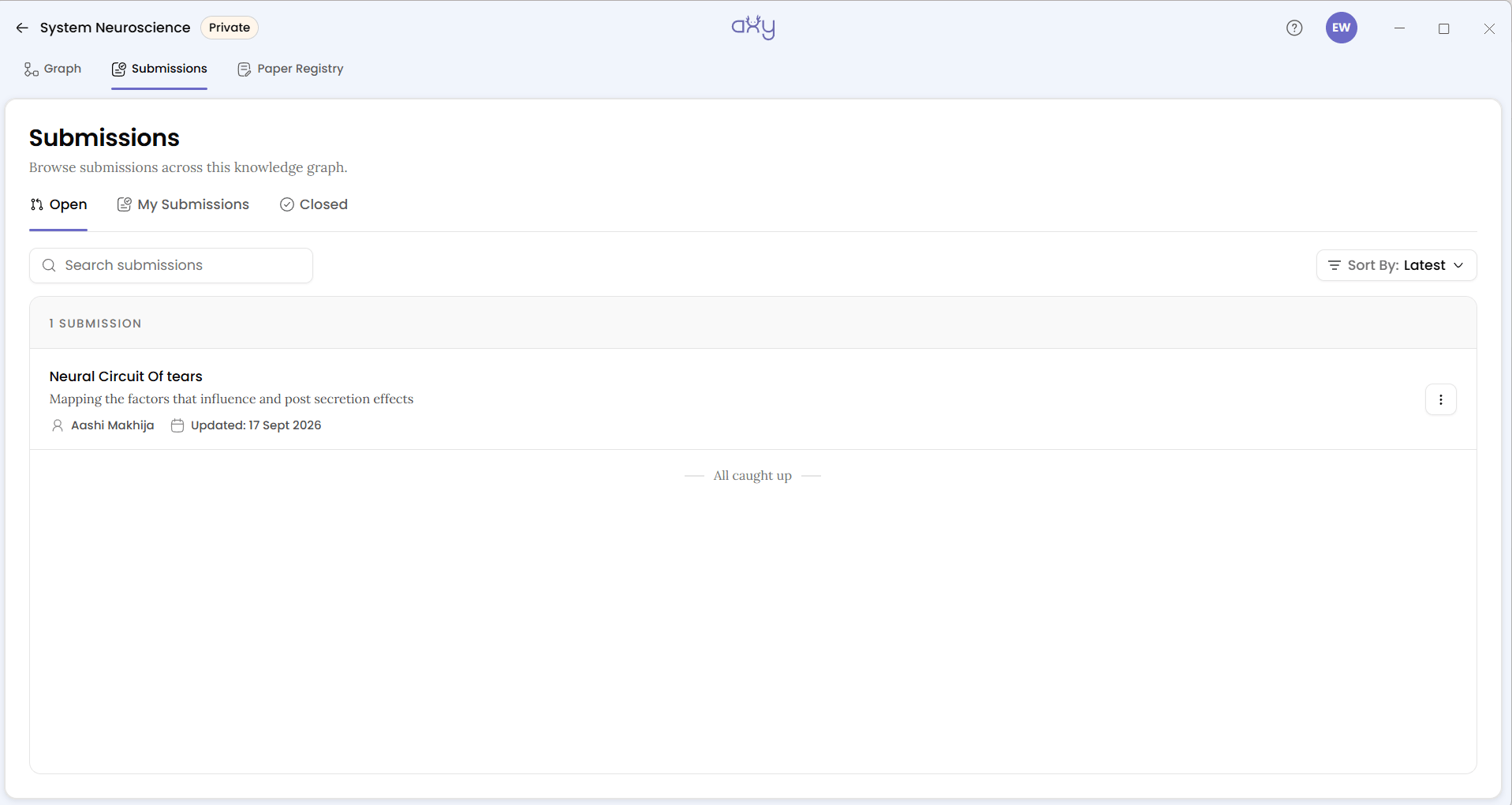
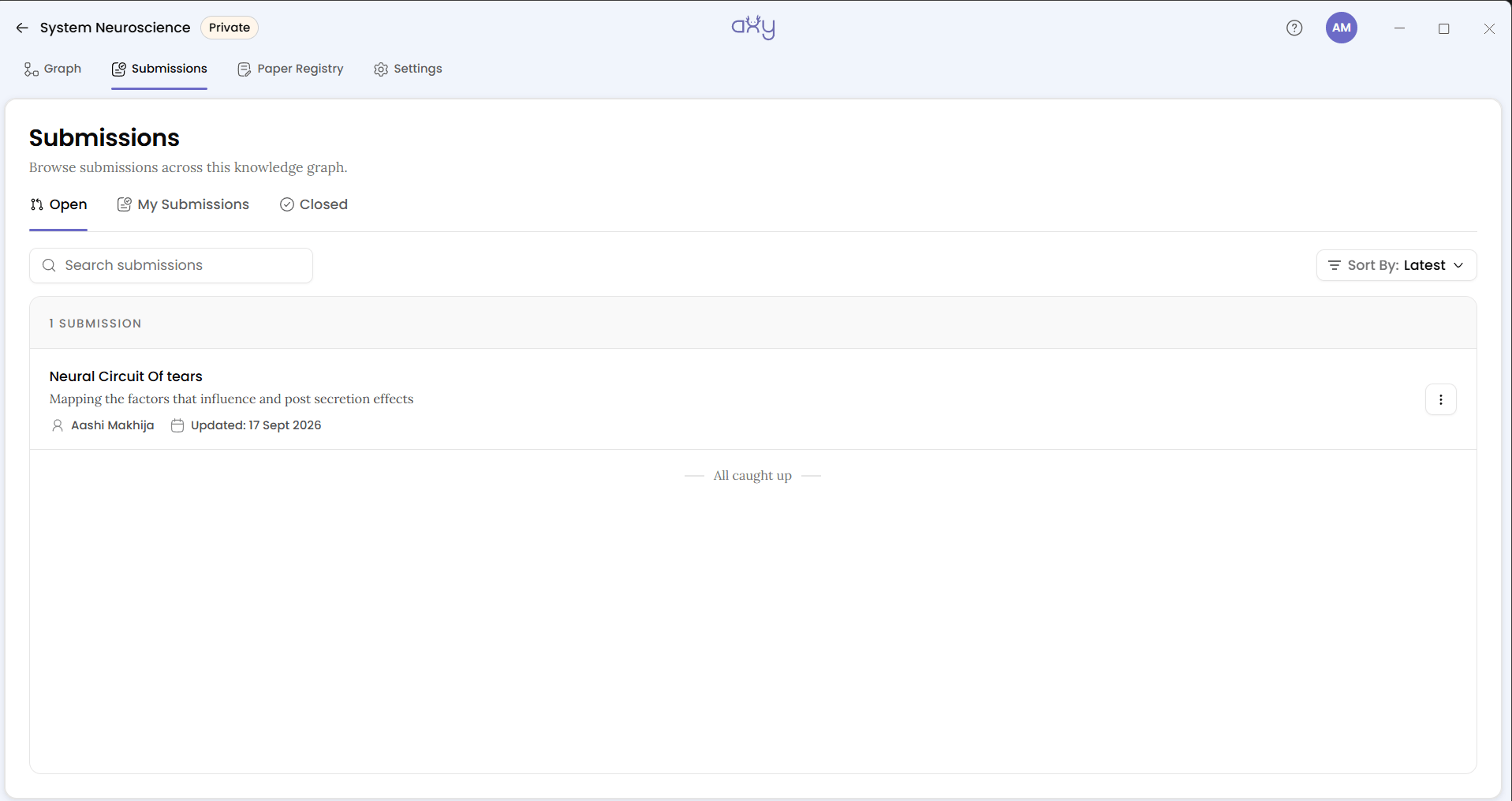
In your own account, open the Submissions tab, which lands on the Open queue — the graph-wide list of every submission, not just yours. There are three tabs: Open (submissions still in progress), My Submissions (submissions you’ve created), and Closed (submissions that have been closed or merged). Each tab has its own subtitle explaining what it holds, and a count above the list: N SUBMISSIONS.
Axy doesn’t send review notifications. There’s no email, no in-app badge, nothing telling you a submission is waiting. That’s why this step matters: your teammate won’t know their submission was reviewed unless you say so, and you won’t know one exists unless you check here. A draft your teammate hasn’t submitted yet won’t show up under any tab.
Read the proposed change set
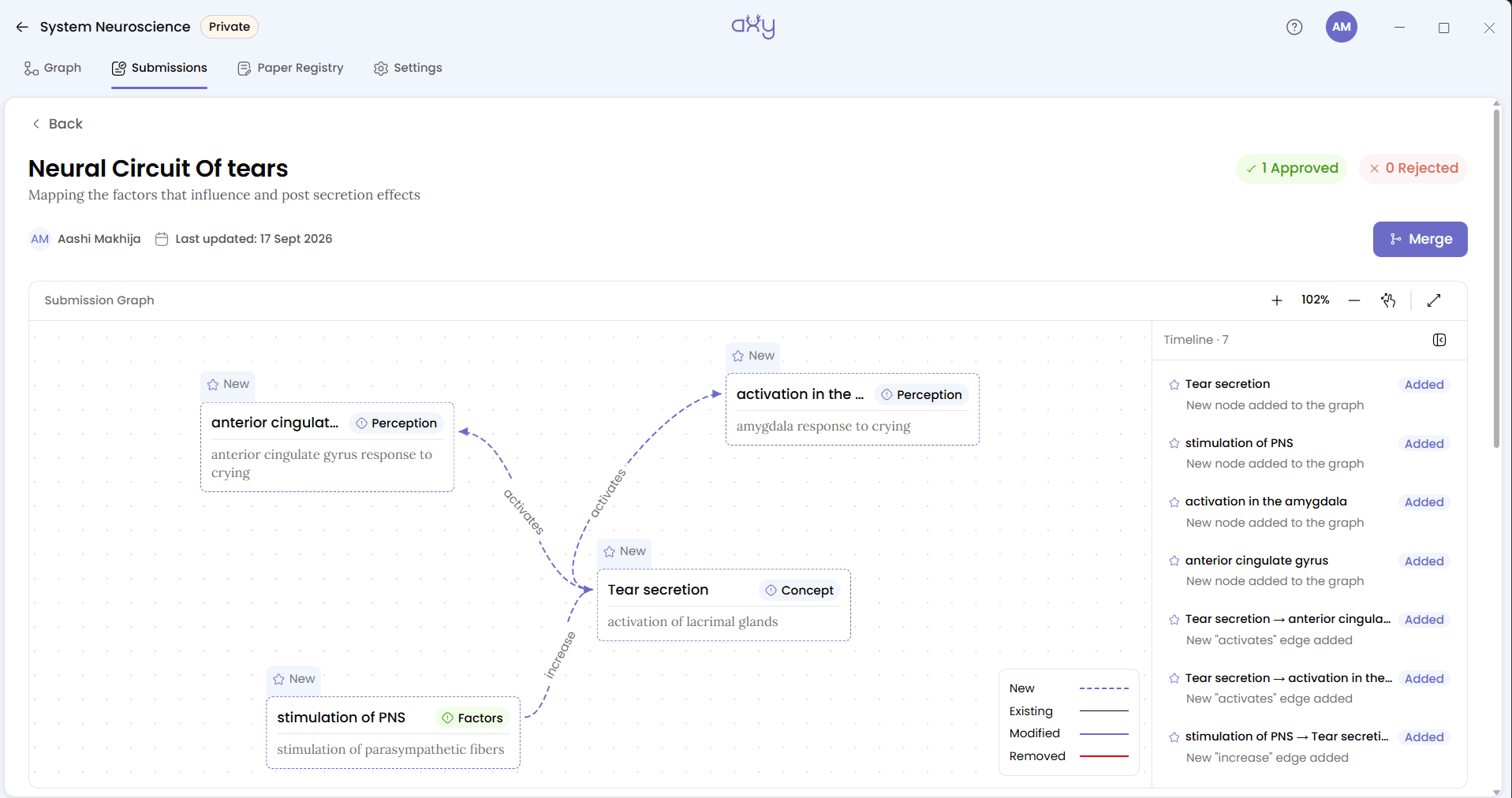
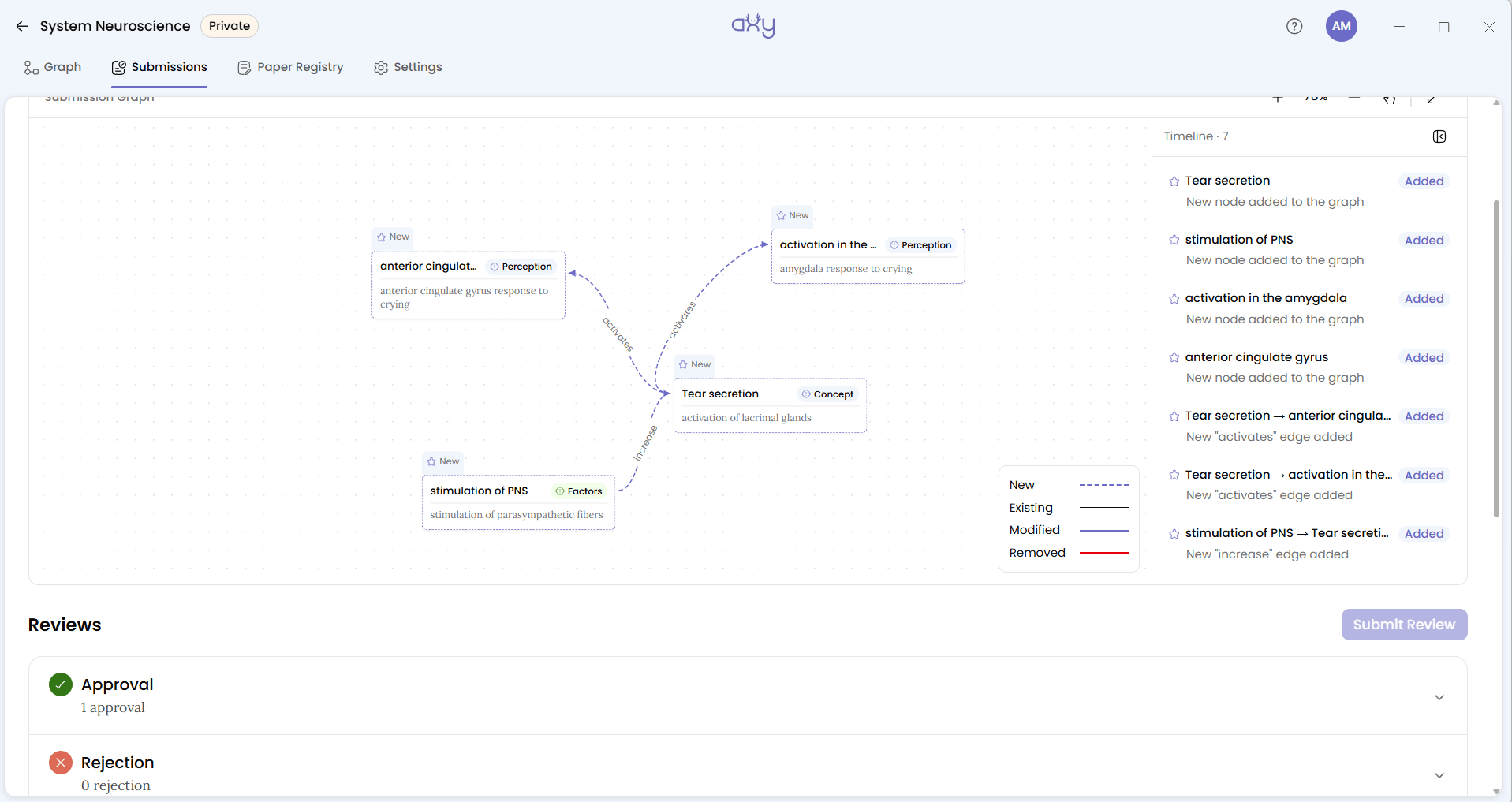
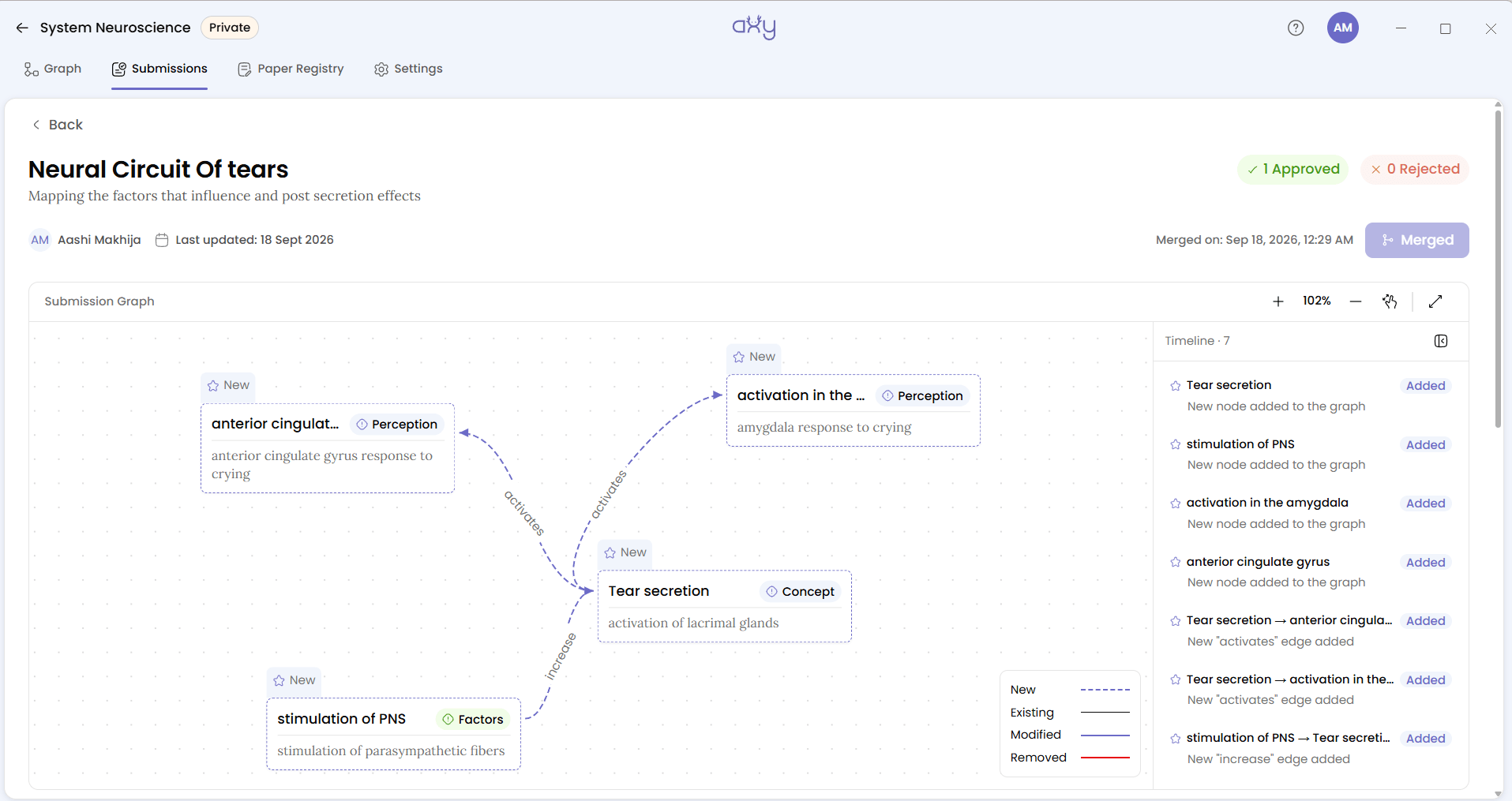
Open the submission and you’ll see its title, description, and two pills: N Approved and N Rejected. Below that, the author’s avatar and name, and when it was last updated. Scroll down for a read-only graph view showing exactly what this submission would change if merged, plus a timeline of activity down the side.
As you read, check whether the nodes represent real concepts, whether the relationships make sense, and whether the evidence actually supports what’s being claimed — or whether the author needs a nudge on vocabulary.
Discuss the contribution
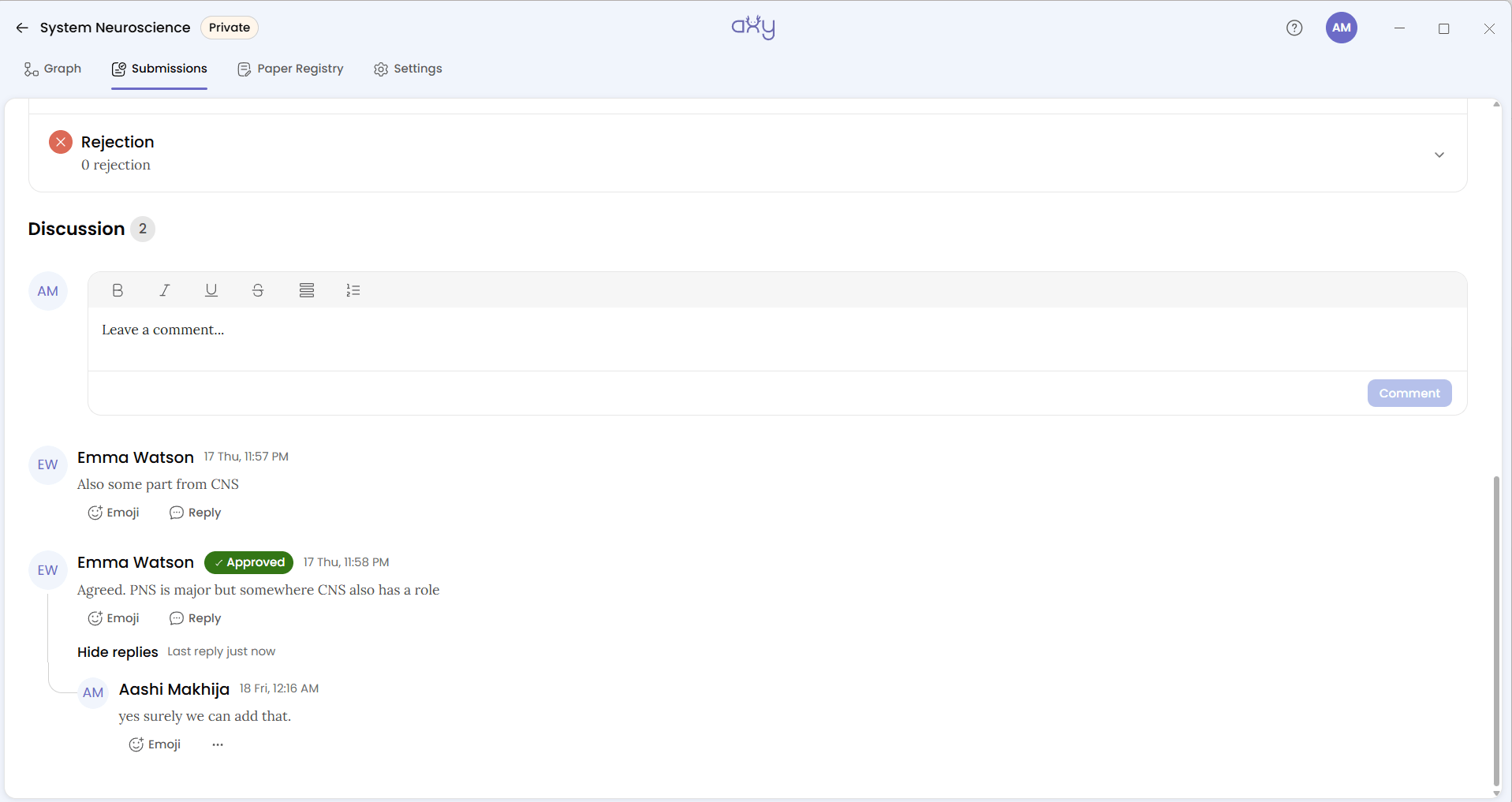
Most of the review happens here, before you approve or reject. The Discussion section has a comment box: ask questions, reply, react, and work through uncertainties with whoever made the contribution. Reply to a comment and Axy fills in the box with “Reply to @<their name>” for you. Once a thread gets long, older comments load behind a View More Comments link.
A paper may support one interpretation but not another. A contributor may have used a different term than the rest of the team uses. Neither is a reason to reject outright — both are opportunities to improve the contribution before it’s final. Discussion lets the author and reviewer examine the reasoning behind a change before deciding whether it’s ready.
Deleting a comment asks you to confirm first, and it’s permanent: “This can’t be undone. The comment will be removed from the discussion for everyone.”
Submit your review
Once you’ve read the contribution and discussed any questions, it’s time to record your review.
At the top of the discussion sits a Submit Review button. On your own submission it’s disabled, and hovering tells you why: “You can’t review your own submission.” That’s the rule this whole workflow is built around, and there’s no setting that turns it off — Axy separates the person proposing a change from the person reviewing it.
Selecting Submit Review opens a dialog with an optional comment box, plus Approve (tells the author it’s ready to move forward) or Reject (asks them to revise before it can be approved). Either way, the submission stays open. Only Members and Admins can review; a View only member can’t.
Review counts don’t decide the merge. After a review, the verdict is added as a row under Approval or Rejection, with your name attached, and the summary pills update. But those counts don’t gate anything — an Admin can merge with zero approvals, or with rejections still on it. Review and merge are two separate decisions: reviews are a record of what people said, and whether to merge belongs to whoever holds the Admin role.


Merge the contribution into the graph
Even after review, an Admin still sees the submission sitting in Open until they click Merge, top right. Clicking it runs pre-merge checks: first Running Pre-merge checks, then Check complete once they pass. These checks confirm the submission can still be applied to the graph’s current state.
If the merge is refused: the graph may have changed since the submission was created — another contribution may have altered its structure, or an entity or type the submission references may no longer exist. You’ll get a Merge Refused dialog.
If the merge succeeds: the button reads Merge Pending while it processes, then Merged, with a toast confirming “Submission merged successfully.” You’re returned to the Graph tab, and the proposed nodes and edges are now part of the graph. The submission shows Merged on, followed by the date and time, and the Merged button stays visible but disabled as a record of what happened.
If the merge fails outright: Axy shows “Merge failed: <reason>. You can retry merge,” and the submission goes back to Open rather than staying stuck. A slow merge just says “Still processing, check back shortly” — you can return later to check its status.

When a reviewer says no
A rejection doesn’t close a submission — it stays in Open, and only the author can change or revise it, not you, even as Admin, even if you disagree with how it was written. You can reject it and explain why in a comment, but you can’t edit or delete it yourself: can_edit and can_delete both belong to whoever created the submission.
If a reviewer rejects the contribution, the author can Convert to Draft, pulling it back out of the review queue so they can change it. They’ll see a toast, “Converted back to draft,” then resubmit when ready. There’s no separate “request changes” step — a rejection with a comment explaining why is the whole mechanism. The point of rejection isn’t to stop collaboration, but to create a clear opening to improve the work.
You’ve completed the collaboration loop
You’ve now taken a contribution from another person all the way through Axy’s shared knowledge workflow: Invite → Build → Submit → Review → Merge.
Great research collaborations don’t move by avoiding every point of discussion — they move by giving discussion, evidence, and decisions a place in the workflow. Now you know what it looks like when a team grows a shared body of knowledge together.
'%3e%3cpath%20fill-rule='evenodd'%20clip-rule='evenodd'%20d='M120%20296L120%20280.035L120%20189.742L120%20120L356.293%20120H429.082L470%20120L470%20296L325.583%20296C298.92%20308.779%20268.624%20316%20236.5%20316C204.376%20316%20174.08%20308.779%20147.417%20296L120%20296Z'%20fill='%23B6C1EB'/%3e%3c/g%3e%3cg%20id='Ellipse%20142'%20filter='url(%23filter1_f_0_8)'%3e%3cpath%20fill-rule='evenodd'%20clip-rule='evenodd'%20d='M147.417%20296C137.774%20291.379%20128.607%20286.031%20120%20280.035L120%20189.742L120%20120L356.293%20120L429.082%20120C429.689%20125.758%20430%20131.595%20430%20137.5C430%20206.449%20387.622%20266.268%20325.584%20296C298.92%20308.779%20268.624%20316%20236.5%20316C204.376%20316%20174.08%20308.779%20147.417%20296Z'%20fill='%23FFFFE6'/%3e%3c/g%3e%3cg%20id='Ellipse%20143'%20filter='url(%23filter2_f_0_8)'%3e%3cpath%20fill-rule='evenodd'%20clip-rule='evenodd'%20d='M120%20189.742C141.632%20225.693%20183.01%20250%20230.5%20250C300.364%20250%20357%20197.394%20357%20132.5C357%20128.278%20356.76%20124.107%20356.293%20120L120%20120L120%20189.742Z'%20fill='white'/%3e%3c/g%3e%3c/g%3e%3cdefs%3e%3cfilter%20id='filter0_f_0_8'%20x='-6.38111e-08'%20y='4.01978e-08'%20width='590'%20height='436'%20filterUnits='userSpaceOnUse'%20color-interpolation-filters='sRGB'%3e%3cfeFlood%20flood-opacity='0'%20result='BackgroundImageFix'/%3e%3cfeBlend%20mode='normal'%20in='SourceGraphic'%20in2='BackgroundImageFix'%20result='shape'/%3e%3cfeGaussianBlur%20stdDeviation='60'%20result='effect1_foregroundBlur_0_8'/%3e%3c/filter%3e%3cfilter%20id='filter1_f_0_8'%20x='20'%20y='20.0001'%20width='510'%20height='396'%20filterUnits='userSpaceOnUse'%20color-interpolation-filters='sRGB'%3e%3cfeFlood%20flood-opacity='0'%20result='BackgroundImageFix'/%3e%3cfeBlend%20mode='normal'%20in='SourceGraphic'%20in2='BackgroundImageFix'%20result='shape'/%3e%3cfeGaussianBlur%20stdDeviation='50'%20result='effect1_foregroundBlur_0_8'/%3e%3c/filter%3e%3cfilter%20id='filter2_f_0_8'%20x='20'%20y='20.0002'%20width='437'%20height='330'%20filterUnits='userSpaceOnUse'%20color-interpolation-filters='sRGB'%3e%3cfeFlood%20flood-opacity='0'%20result='BackgroundImageFix'/%3e%3cfeBlend%20mode='normal'%20in='SourceGraphic'%20in2='BackgroundImageFix'%20result='shape'/%3e%3cfeGaussianBlur%20stdDeviation='50'%20result='effect1_foregroundBlur_0_8'/%3e%3c/filter%3e%3c/defs%3e%3c/svg%3e)


