


Ask “Which genera sit under the families of this clade?” and a human brain sketches the relationship in about ten seconds. For a graph database to answer the same question, you’d first have to write it in a query language. But a scientist shouldn’t have to learn a query language just to ask their own lab’s knowledge graph a question.
With Axy, you build that question directly on the canvas. Choose what you’re looking for, how it connects, which direction the relationship runs, and what comes next, and Axy finds the matching part of your graph for you. No query syntax or SQL required. And here’s where it gets interesting: you can follow a question across multiple relationships, not just search for a single node.
To follow along, you’ll need a graph with something in it. If you haven’t added anything yet, start with Configure Your Knowledge Graph: Node Types, Edge Types And Edge Statuses.
Before you start searching, there’s one thing to know. Every part of the search is picked from a list:
Node Type → Relationship → Direction → Target
That vocabulary comes from the Node Types and Edge Types you configured in Settings. Free text is only used to find a node by its name. If you type “species that live in forests” and nothing comes back, that’s why: the bar matches names, it doesn’t read sentences. Think of it as turning a research question into a path through your evidence.
This guide uses the desktop app, but the search bar works the same way in the web app.
Open the Graph tab to Discover
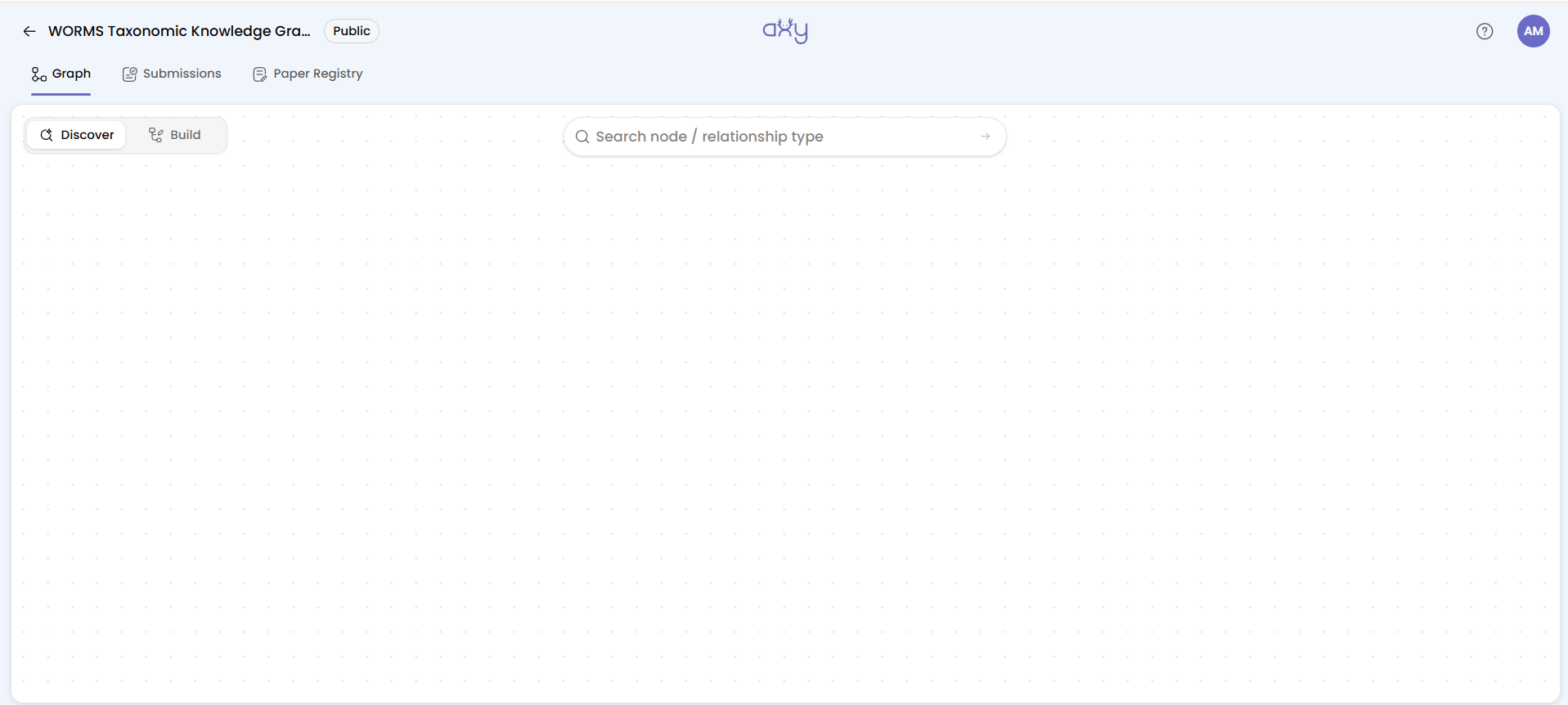
Open your knowledge graph and go to the Graph tab. At the top left is a two-way toggle, Discover and Build. Discover is selected by default, so you’re already in the right place.
The search bar floats at the top centre of the canvas. This is where your graph stops being something you simply look at and becomes something you can interrogate.
Pick what you’re looking for
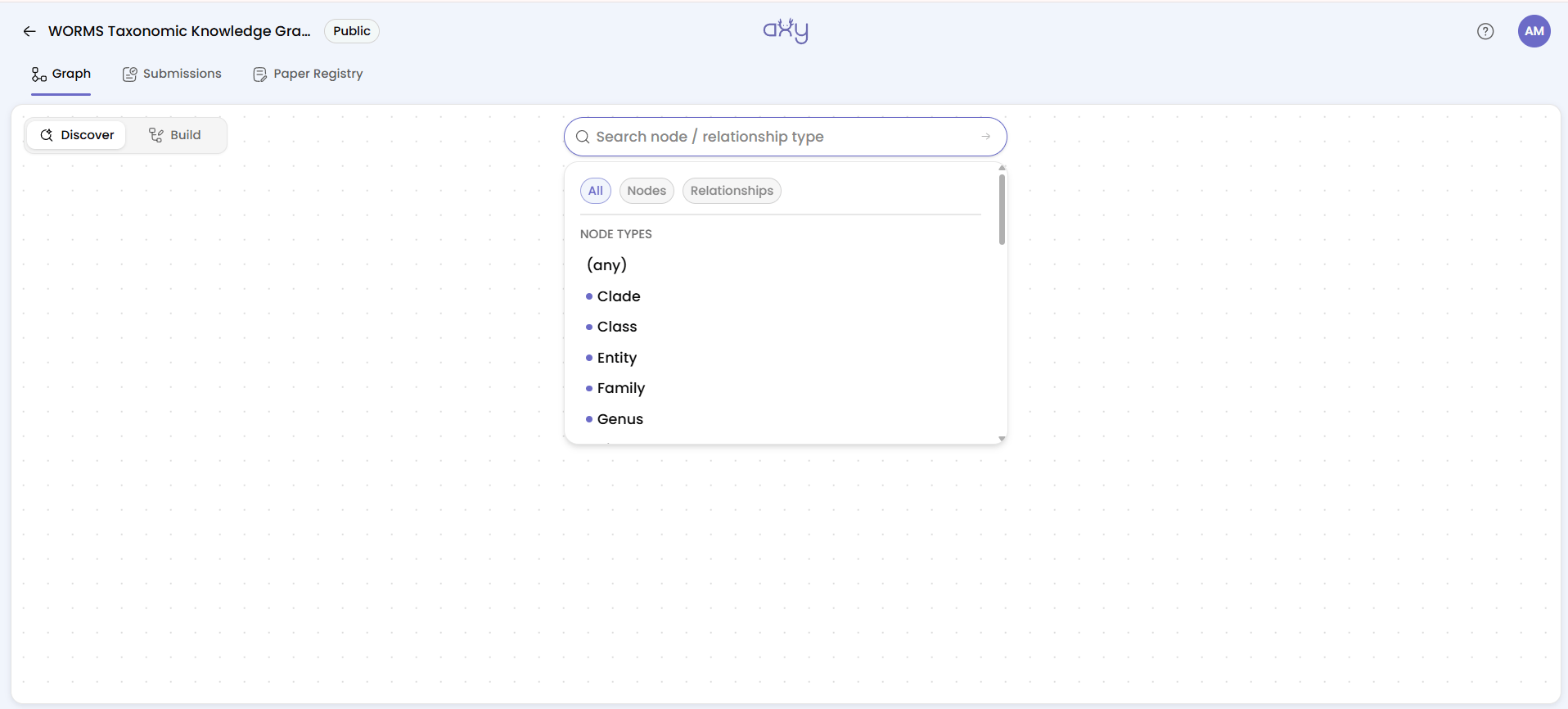
Click into the search bar and a dropdown opens with three filter pills: All, Nodes and Relationships.
Below them, the graph’s vocabulary is split into sections:
- Node types: the kinds of things your graph contains, such as Clade, Family or Genus.
- Relationship types: the edge types you defined, such as parent_of, feeds_on or has_host.
- Nodes named…: matching nodes, listed once you start typing.
At the top of every list there’s also a row labelled (any). It tells Axy “don’t restrict this part yet, show me whatever fits.” You’ll use it a lot later.
Pick a node type and it becomes a coloured chip in the search bar. You’ve just told Axy, “Show me every node of this kind.”
Too many results? Narrow it down by name
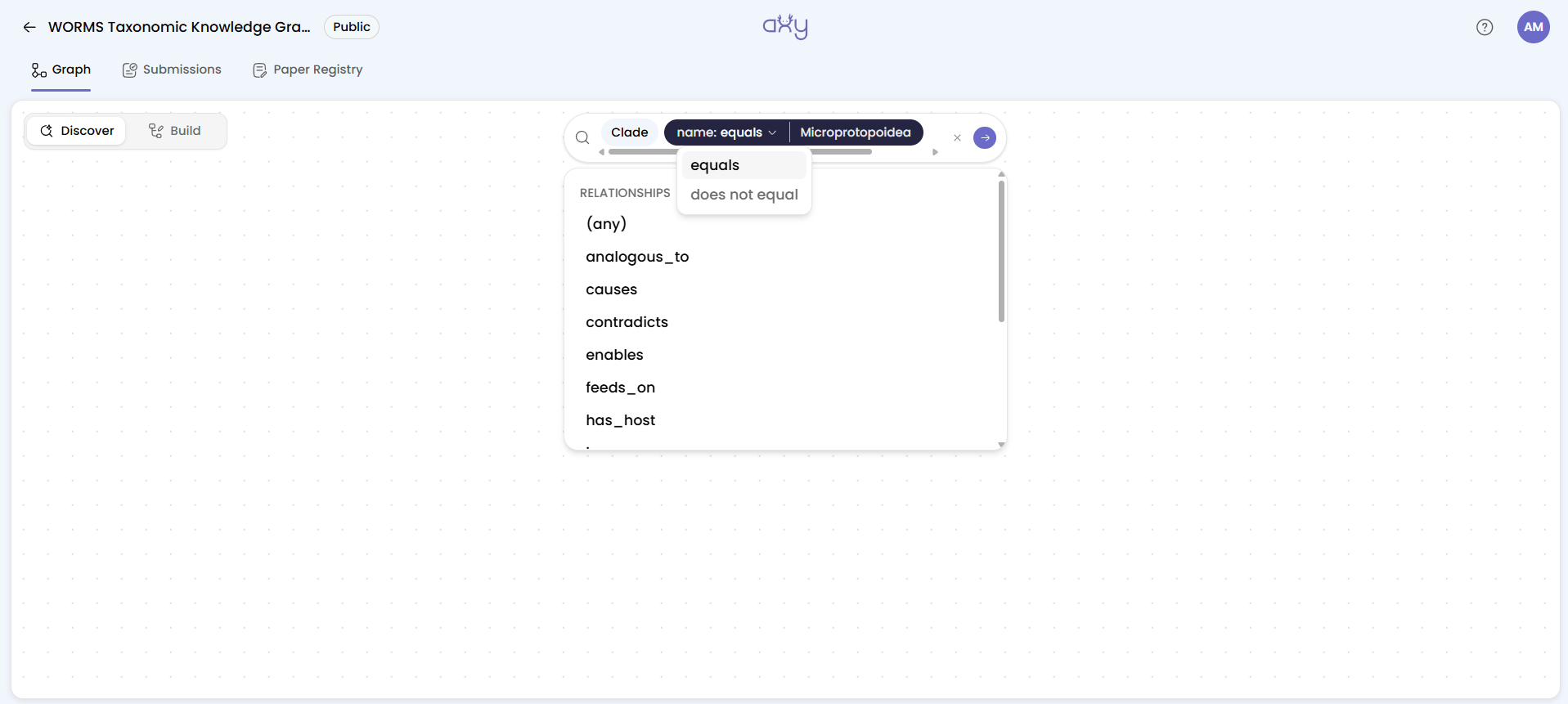
“Every node of this type” can be a lot of nodes. To narrow the search, add a name filter. A black pill labelled name appears, then an operator, then the value you type.
You can choose:
- equals: finds the node with that exact name.
- does not equal: finds every node of that type except the one you named.
The second option is more useful than it looks. For example: “Show me every clade except the one I’m already studying.”
You’ve turned a thought into a precise filter instead of scanning a large graph by hand.
Add a relationship hop
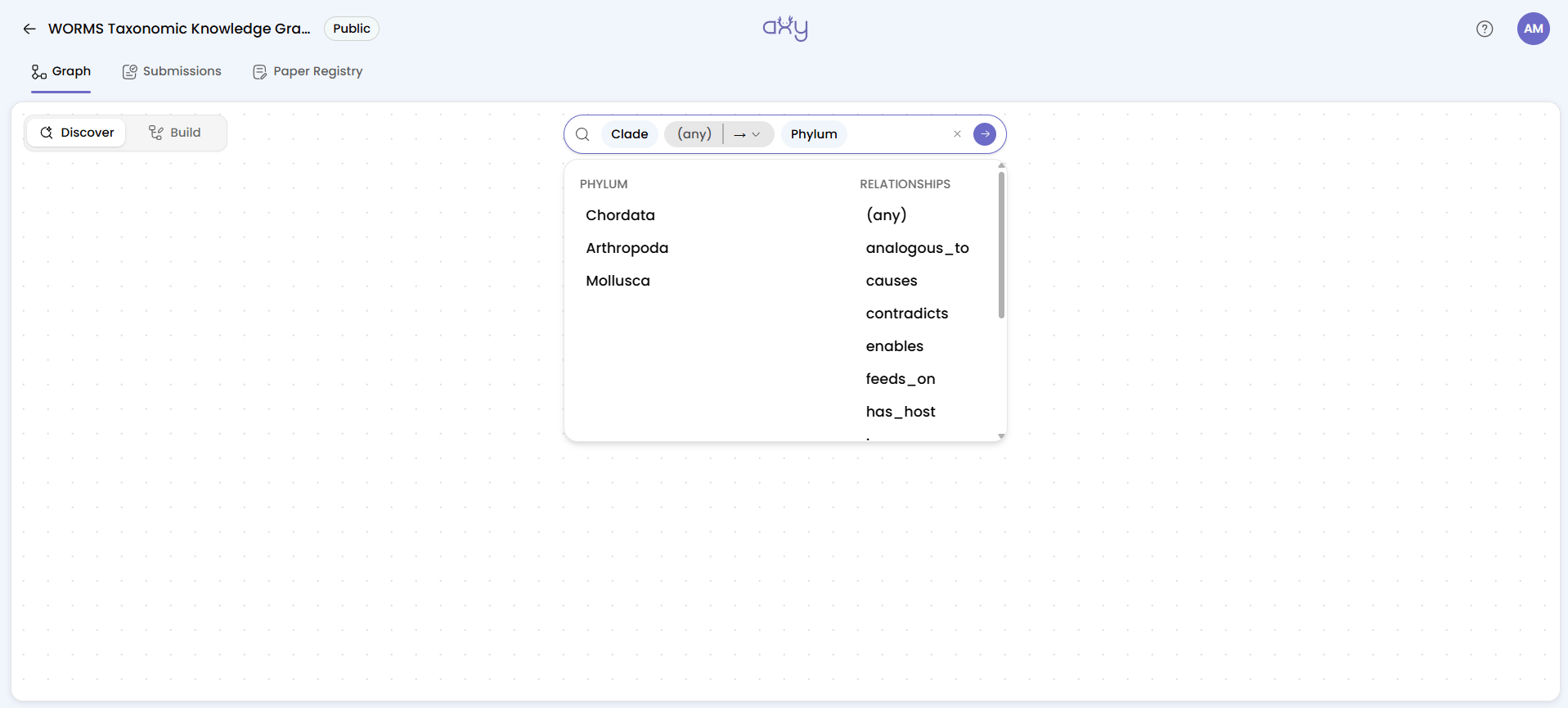
This is where Axy’s search becomes a graph search rather than just another search box. Hops are the part that only makes sense on a graph.
Once you’ve picked your starting node or node type, add a relationship (an edge type). Choose a specific one, such as parent_of, or (any) to explore every kind of connection. This is one hop: one step along an edge, away from the node you started from.
Choose the direction
Every relationship has three options:
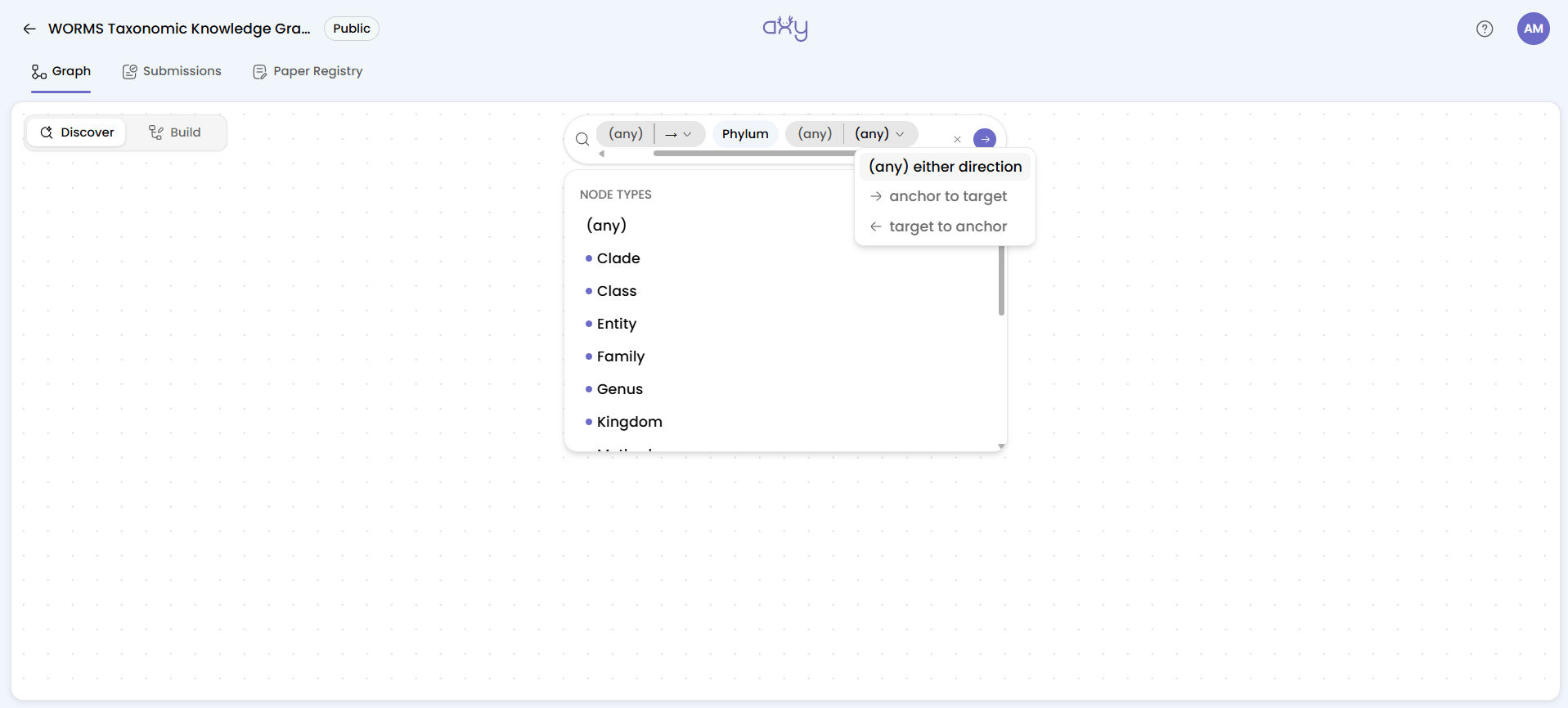
- (any): either direction.
- →: anchor to target, pointing away from the starting node.
- ←: target to anchor, pointing back towards the starting node.
This isn’t just a technical setting. Direction changes the scientific meaning of the relationship. “X feeds on Y” and “Y feeds on X” are two different claims. When you search, pick the direction your team agreed on, on purpose.
Choose where the relationship leads
Now tell Axy what should be at the other end of the relationship.
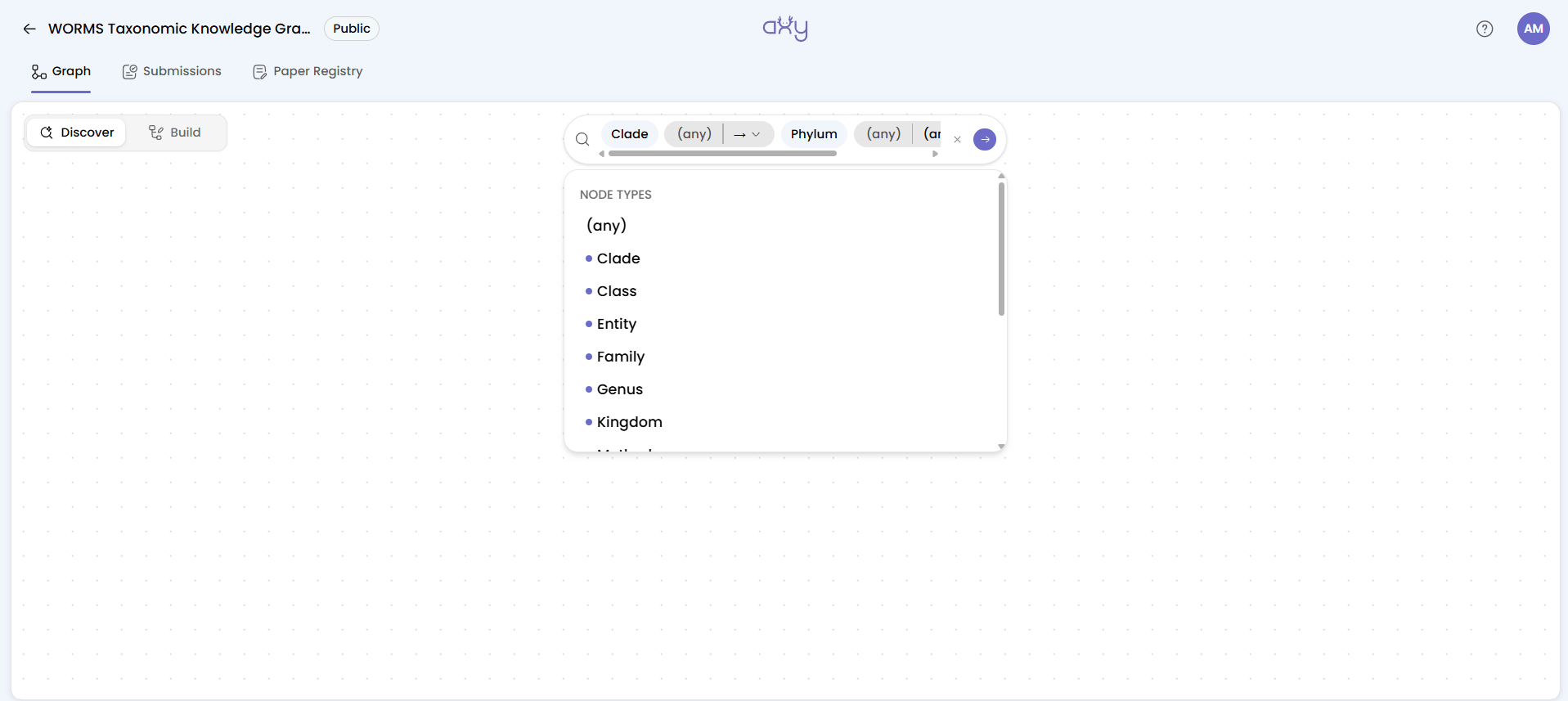
You can choose:
- a node type, to get every node of that kind.
- (any), to get whatever is connected.
- one named node, by typing its exact name and picking it from the Nodes list.
This lets you ask targeted questions, like “Which families sit directly under this one specific clade?”, without searching by hand.
One relationship isn’t always enough
Here’s where things get powerful: you can chain another hop.
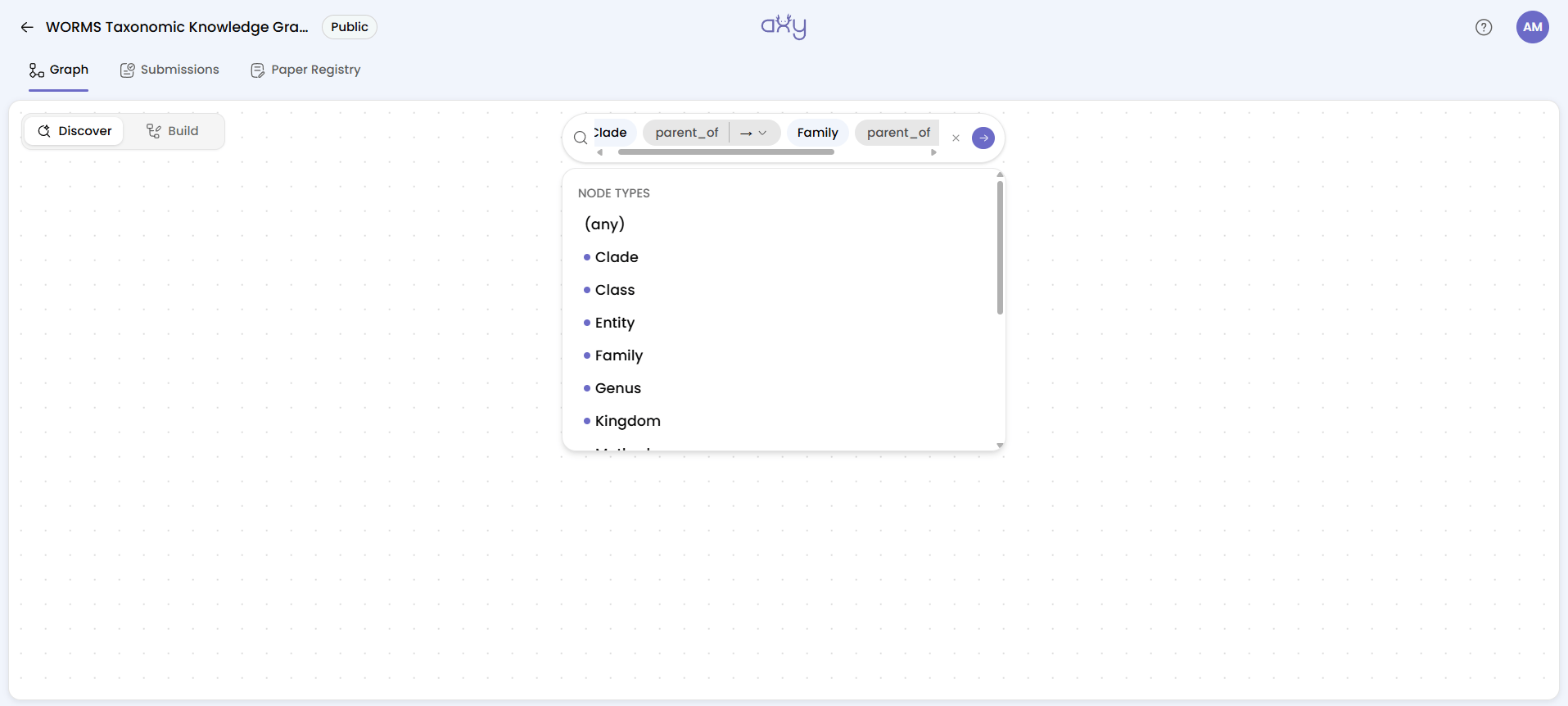
You don’t have to stop after one edge. Pick another edge type, set its direction, and pick another target, the same three choices as before. Each round adds a hop.
Now the bar reads like the question from the start of this guide: a clade that is parent_of a family, which is parent_of a genus. Every chip in it came from your own vocabulary.
You can chain up to four hops. Try to add a fifth and the dropdown tells you:
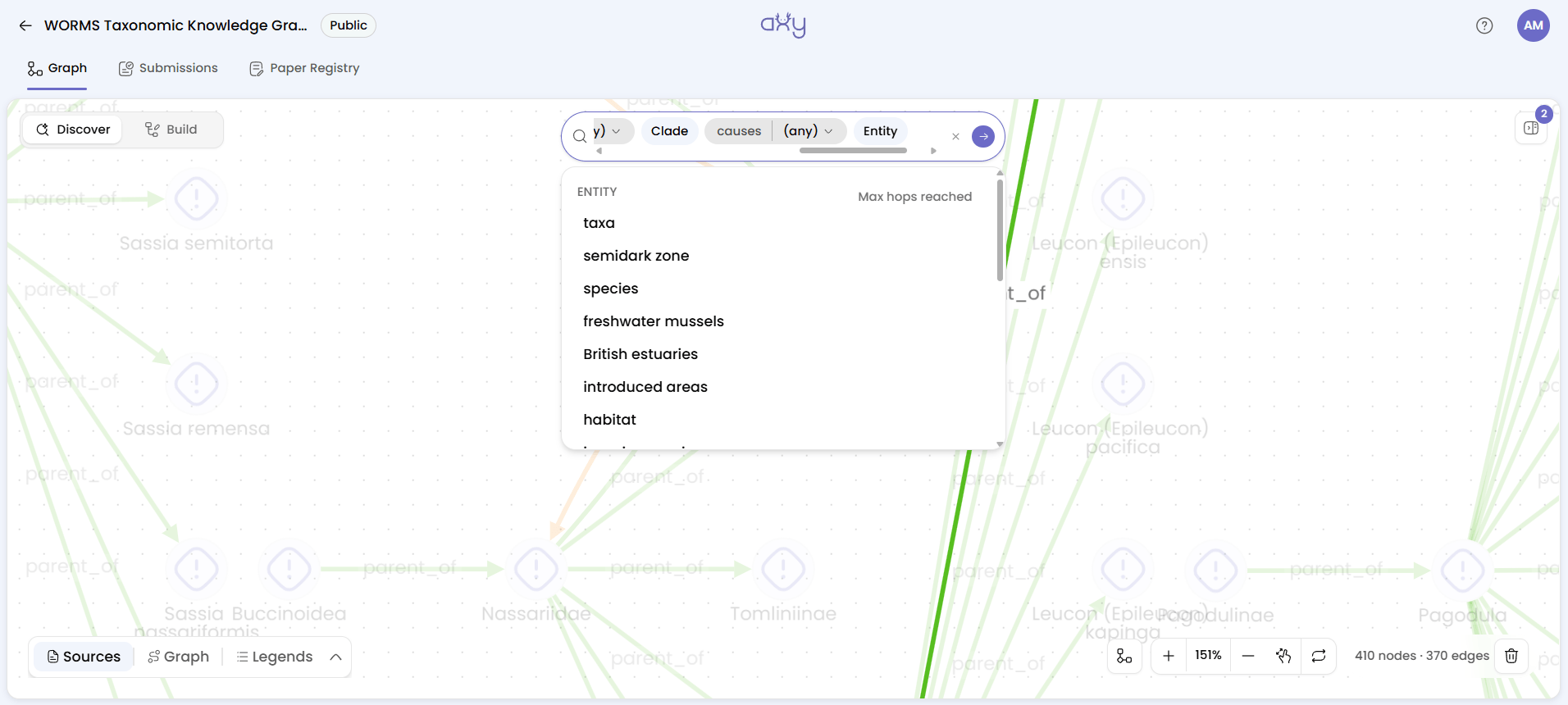
“Max hops reached”
Press Run to search what you have, or Backspace to remove the last hop.
Four hops go further than it sounds. If your question needs more, don’t force one enormous query. Break it into two searches and run them one after the other. The results add up on the canvas, as the next sections show.
Run the search
Once your question looks right, press Enter or Tab, or click the send arrow (Run search). The arrow turns into a spinner while the search runs. If you were typing a name, the dropdown shows Searching… until the matches come back.
If nothing matches, a red bar under the search bar says “Sorry, we couldn’t find any results.” It disappears after a second or two. Don’t take it as proof the knowledge isn’t there. Usually one hop is too narrow, so swap a specific edge type or direction for (any) and run it again. A failed search can tell you as much about your question as about your graph.
Read the answer as a graph
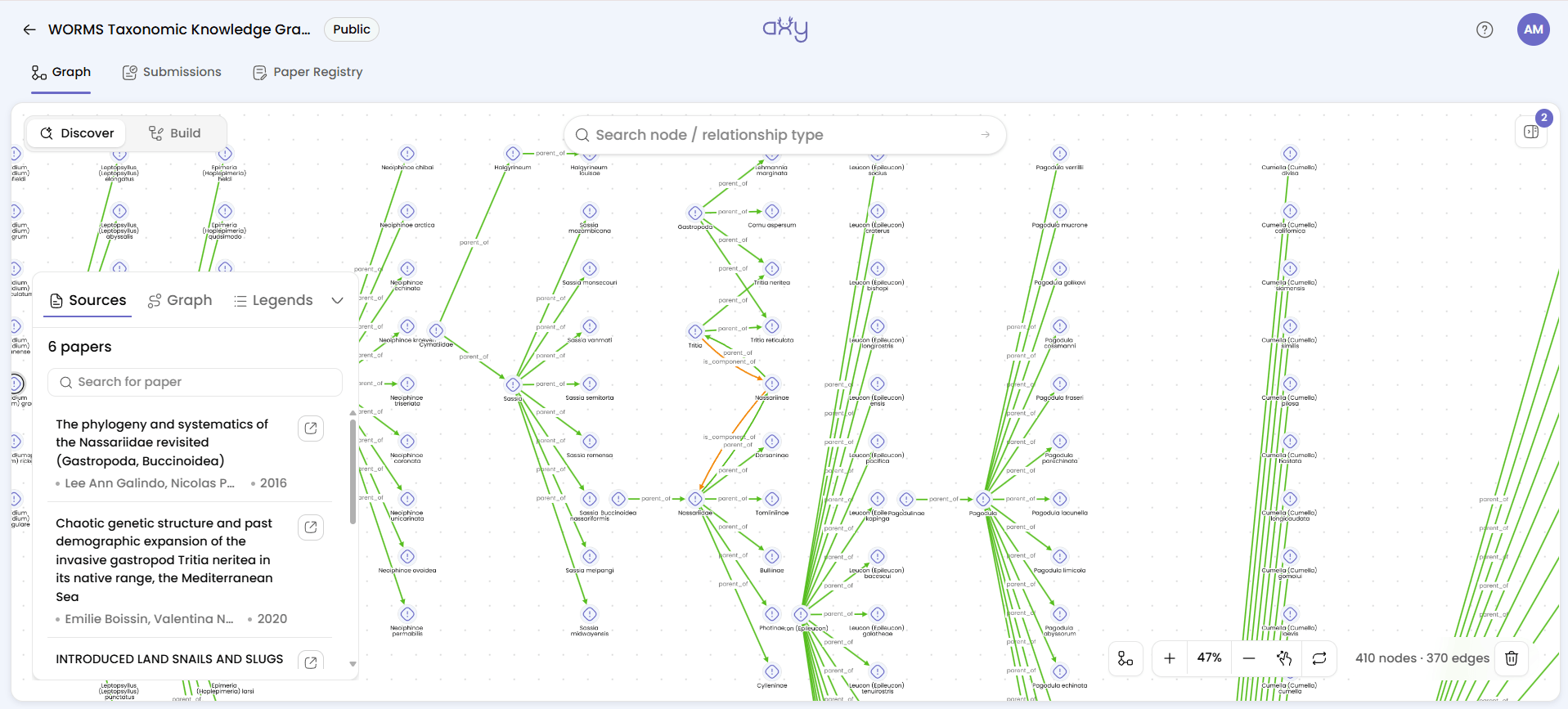
Your results appear directly on the canvas. Along with the nodes, Axy gives you a few tools:
- A panel at the bottom left with three tabs, Sources, Graph and Legends. It collapses with the arrow at its right end.
- Sources lists the papers behind what’s on the canvas, with a Search for paper box.
- Graph lists everything your search brought up. Select a node or relationship to see its details.
- Legends is a key to the colours and types you’re looking at.
- A counter, bottom right next to the zoom controls, shows how many nodes and edges are visible.
- A layout picker, top left under the Discover/Build toggle, rearranges the results so you can see the connections differently.
Your next search doesn’t erase the first one. It adds to it. Run a second search and its results join the first. Axy then draws the edges between what you just found and what was already on screen. Two searches build up one picture instead of giving you two separate ones.
Find one part of the graph → find another → see what connects them.
Instead of asking one massive question, you build up the scientific context around it, step by step.
When the result is capped
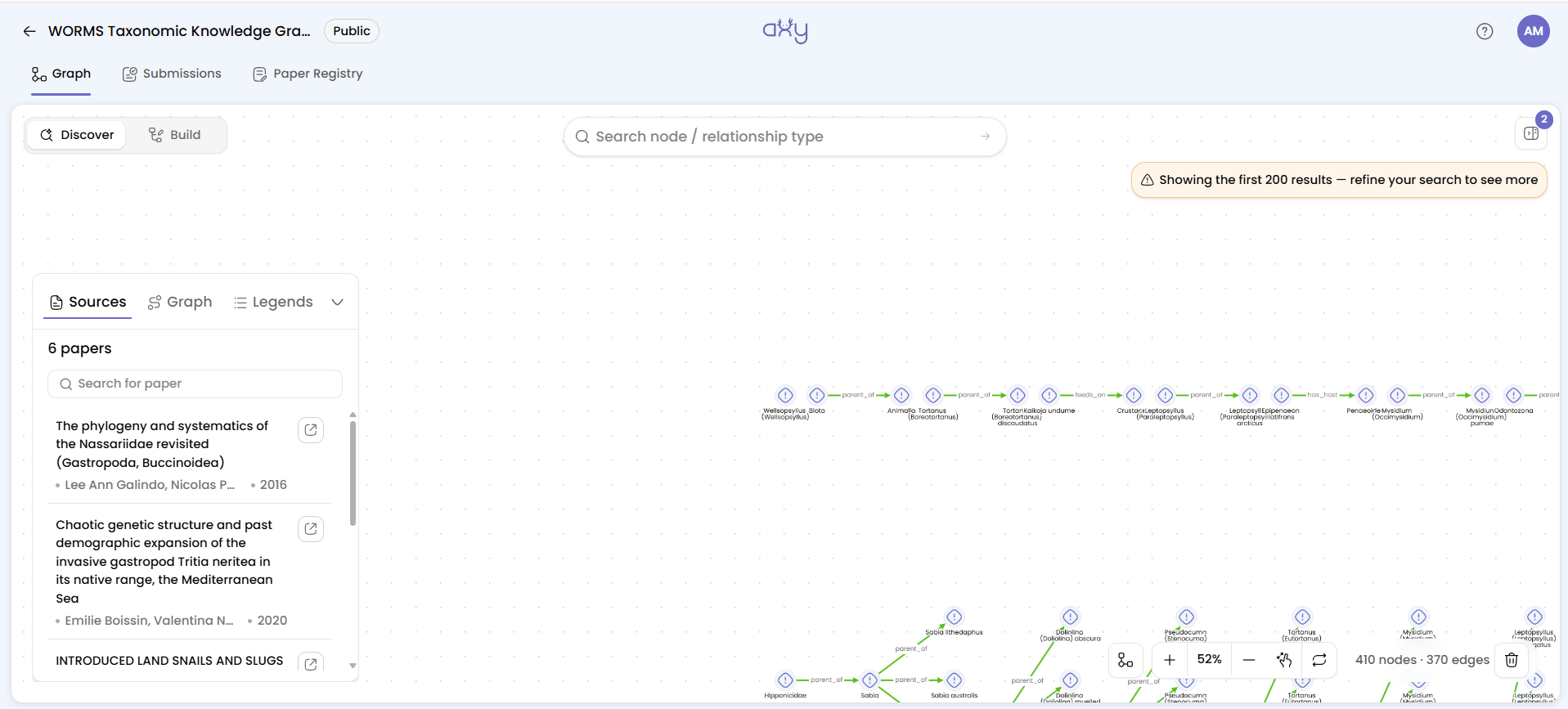
Axy returns at most 200 nodes per search. If your search matches more than that, you’ll see an amber notice at the top right:
“Showing the first 200 results — refine your search to see more”
The remaining nodes aren’t just off-screen. They aren’t on the canvas at all yet. Refine your search instead: add a name filter, swap (any) for a specific type, or add a hop that only some of the matches have. A search that hits the cap usually means the question can be made more precise.
Edit your question without starting over
Research rarely moves in a straight line. Your first question leads to a better second one, and Axy lets you adjust the search without rebuilding it from scratch.
- Backspace in an empty input removes the last chip, so you can step back one segment at a time.
- Escape clears everything you’ve staged and closes the dropdown.
- × at the right end of the bar (Clear search) appears once something is staged, and clears the bar in one click.
The goal isn’t the perfect search on the first attempt. It’s to question the graph until the right connection becomes visible.
You’re not searching a database. You’re exploring a hypothesis space.
That’s the shift worth remembering. You can now question your graph, expand it, and reason through it rather than simply browse. And you never had to write a query.
One thing decides how powerful all of this can be: the vocabulary underneath your graph. Every Node Type and Relationship Type in search comes from the vocabulary you configured. If your graph uses inconsistent names or overly broad relationships, your searches inherit those limits.
Up next: go deeper into your graph. Explore, navigate, and discover knowledge you may not have seen before.
'%3e%3cpath%20fill-rule='evenodd'%20clip-rule='evenodd'%20d='M120%20296L120%20280.035L120%20189.742L120%20120L356.293%20120H429.082L470%20120L470%20296L325.583%20296C298.92%20308.779%20268.624%20316%20236.5%20316C204.376%20316%20174.08%20308.779%20147.417%20296L120%20296Z'%20fill='%23B6C1EB'/%3e%3c/g%3e%3cg%20id='Ellipse%20142'%20filter='url(%23filter1_f_0_8)'%3e%3cpath%20fill-rule='evenodd'%20clip-rule='evenodd'%20d='M147.417%20296C137.774%20291.379%20128.607%20286.031%20120%20280.035L120%20189.742L120%20120L356.293%20120L429.082%20120C429.689%20125.758%20430%20131.595%20430%20137.5C430%20206.449%20387.622%20266.268%20325.584%20296C298.92%20308.779%20268.624%20316%20236.5%20316C204.376%20316%20174.08%20308.779%20147.417%20296Z'%20fill='%23FFFFE6'/%3e%3c/g%3e%3cg%20id='Ellipse%20143'%20filter='url(%23filter2_f_0_8)'%3e%3cpath%20fill-rule='evenodd'%20clip-rule='evenodd'%20d='M120%20189.742C141.632%20225.693%20183.01%20250%20230.5%20250C300.364%20250%20357%20197.394%20357%20132.5C357%20128.278%20356.76%20124.107%20356.293%20120L120%20120L120%20189.742Z'%20fill='white'/%3e%3c/g%3e%3c/g%3e%3cdefs%3e%3cfilter%20id='filter0_f_0_8'%20x='-6.38111e-08'%20y='4.01978e-08'%20width='590'%20height='436'%20filterUnits='userSpaceOnUse'%20color-interpolation-filters='sRGB'%3e%3cfeFlood%20flood-opacity='0'%20result='BackgroundImageFix'/%3e%3cfeBlend%20mode='normal'%20in='SourceGraphic'%20in2='BackgroundImageFix'%20result='shape'/%3e%3cfeGaussianBlur%20stdDeviation='60'%20result='effect1_foregroundBlur_0_8'/%3e%3c/filter%3e%3cfilter%20id='filter1_f_0_8'%20x='20'%20y='20.0001'%20width='510'%20height='396'%20filterUnits='userSpaceOnUse'%20color-interpolation-filters='sRGB'%3e%3cfeFlood%20flood-opacity='0'%20result='BackgroundImageFix'/%3e%3cfeBlend%20mode='normal'%20in='SourceGraphic'%20in2='BackgroundImageFix'%20result='shape'/%3e%3cfeGaussianBlur%20stdDeviation='50'%20result='effect1_foregroundBlur_0_8'/%3e%3c/filter%3e%3cfilter%20id='filter2_f_0_8'%20x='20'%20y='20.0002'%20width='437'%20height='330'%20filterUnits='userSpaceOnUse'%20color-interpolation-filters='sRGB'%3e%3cfeFlood%20flood-opacity='0'%20result='BackgroundImageFix'/%3e%3cfeBlend%20mode='normal'%20in='SourceGraphic'%20in2='BackgroundImageFix'%20result='shape'/%3e%3cfeGaussianBlur%20stdDeviation='50'%20result='effect1_foregroundBlur_0_8'/%3e%3c/filter%3e%3c/defs%3e%3c/svg%3e)


